
Dell Diagnostics USB
A free bootable USB stick that turns any Dell laptop into its own test bench. Boot it and the whole machine is inventoried and exercised — and if a USB-C dock is attached, every signal path of the dock cable is tested live, pin by pin, with a wiggle test that catches intermittent cables in the act.
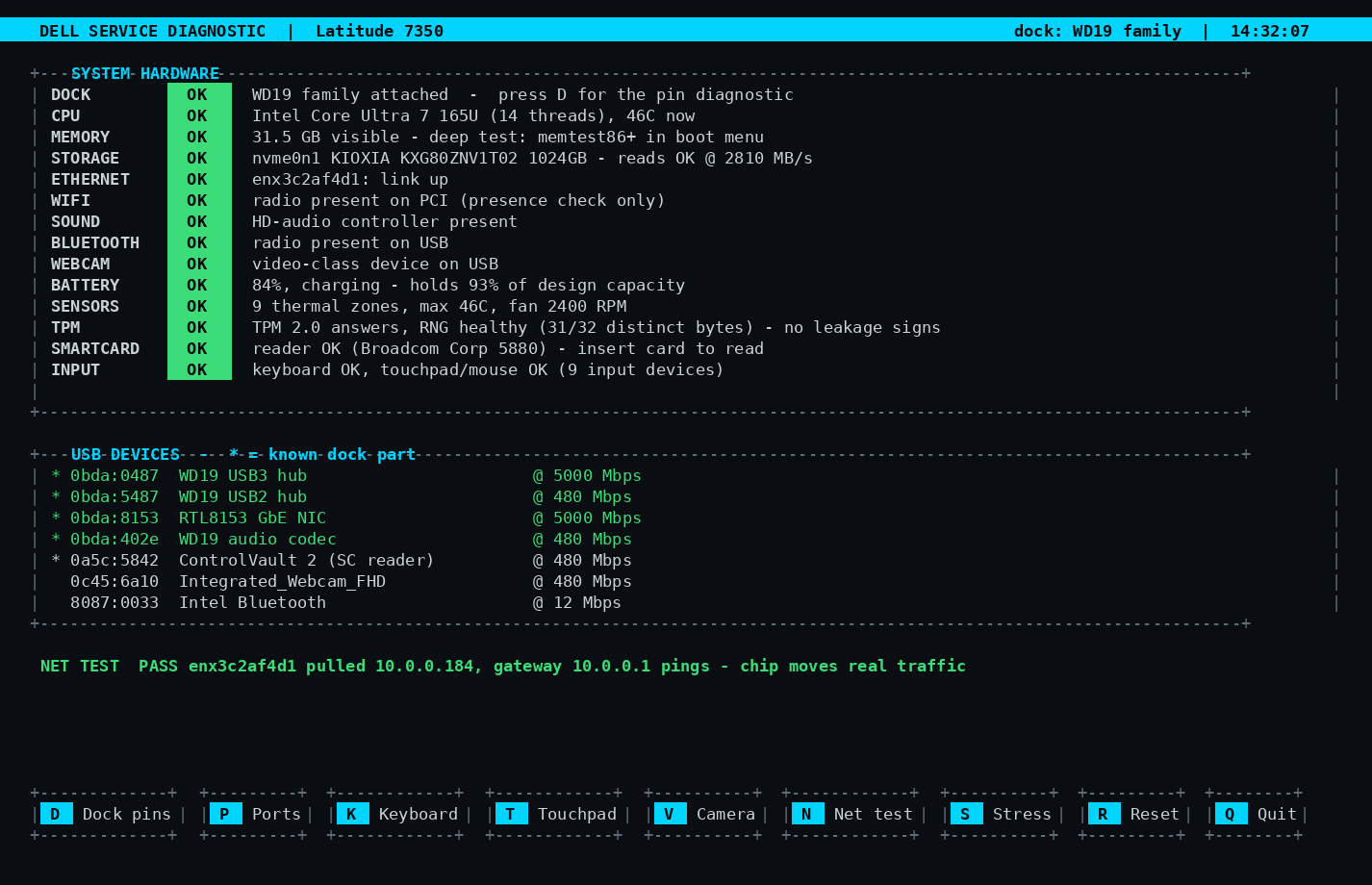
The main screen: every subsystem checked with live pass/fail status.
What it tests
USB-C dock, pin by pin
Draws the 24-pin plug and colours each pin from live tests: PD power, CC negotiation, USB 2 (D+/D−), USB 3 (TX/RX), DisplayPort lanes and AUX/EDID. Wiggle the cable — dropouts are counted with timestamps. WD15/WD19 parts are recognised by name.
Port replicator exercise
Move one flash drive through every dock port; each port reports its own path and negotiated speed, so a USB2-only or dead port is obvious in seconds.
Network chip, for real
Talks to the dock’s ethernet chip itself (MAC, driver, link), then optionally pulls a DHCP lease and pings the gateway to prove real traffic flows.
Keyboard & touchpad
A drawn keyboard lights up every key as you press it (raw event capture — sees keys terminals can’t). The touchpad test traces your finger, measures coverage and verifies the buttons.
Camera
Live video preview rendered right in the console — wave at the camera and watch yourself move. Moving image = working camera, no OS needed.
TPM health
Sends a raw GetRandom command to the TPM (1.2 and 2.0) and entropy-checks the reply — a stuck or low-variety RNG is the classic software-visible sign of a failing chip.
Smart card reader
Detects Dell ControlVault/CCID readers, and reads the ATR off an inserted card to prove contacts, clock and I/O end to end.
CPU stress + fan
Loads every core while graphing temperature and fan RPM against idle — “fan responding” tells you the cooling works before the thermal throttle does.
Battery, storage & more
Battery wear as % of design capacity, disk read-speed spot checks, WiFi/Bluetooth/sound/webcam presence, sensors — plus memtest86+ (64-bit) in the boot menu for RAM.
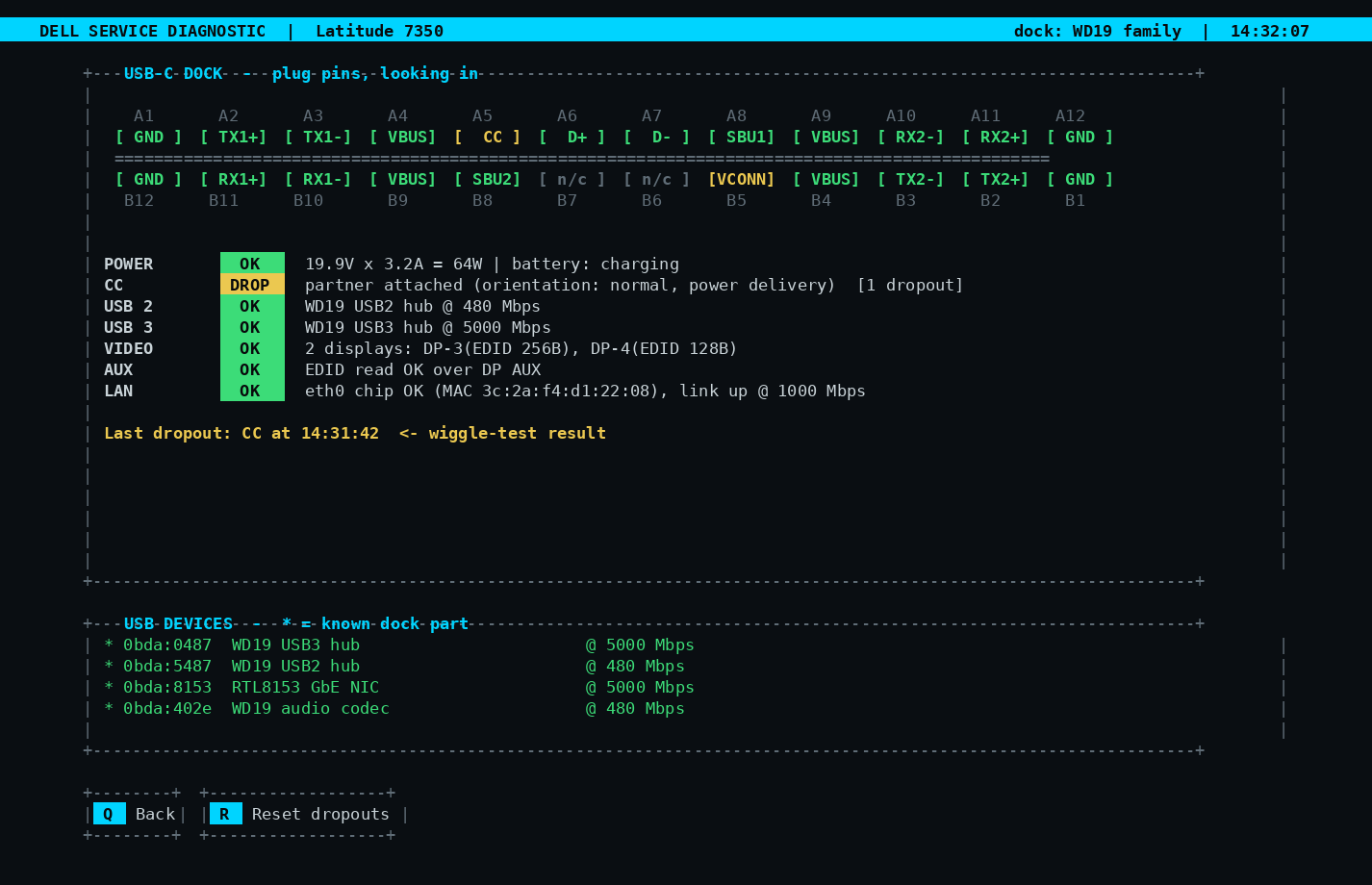
Dock pin diagnostic with live wiggle-test dropout counting.
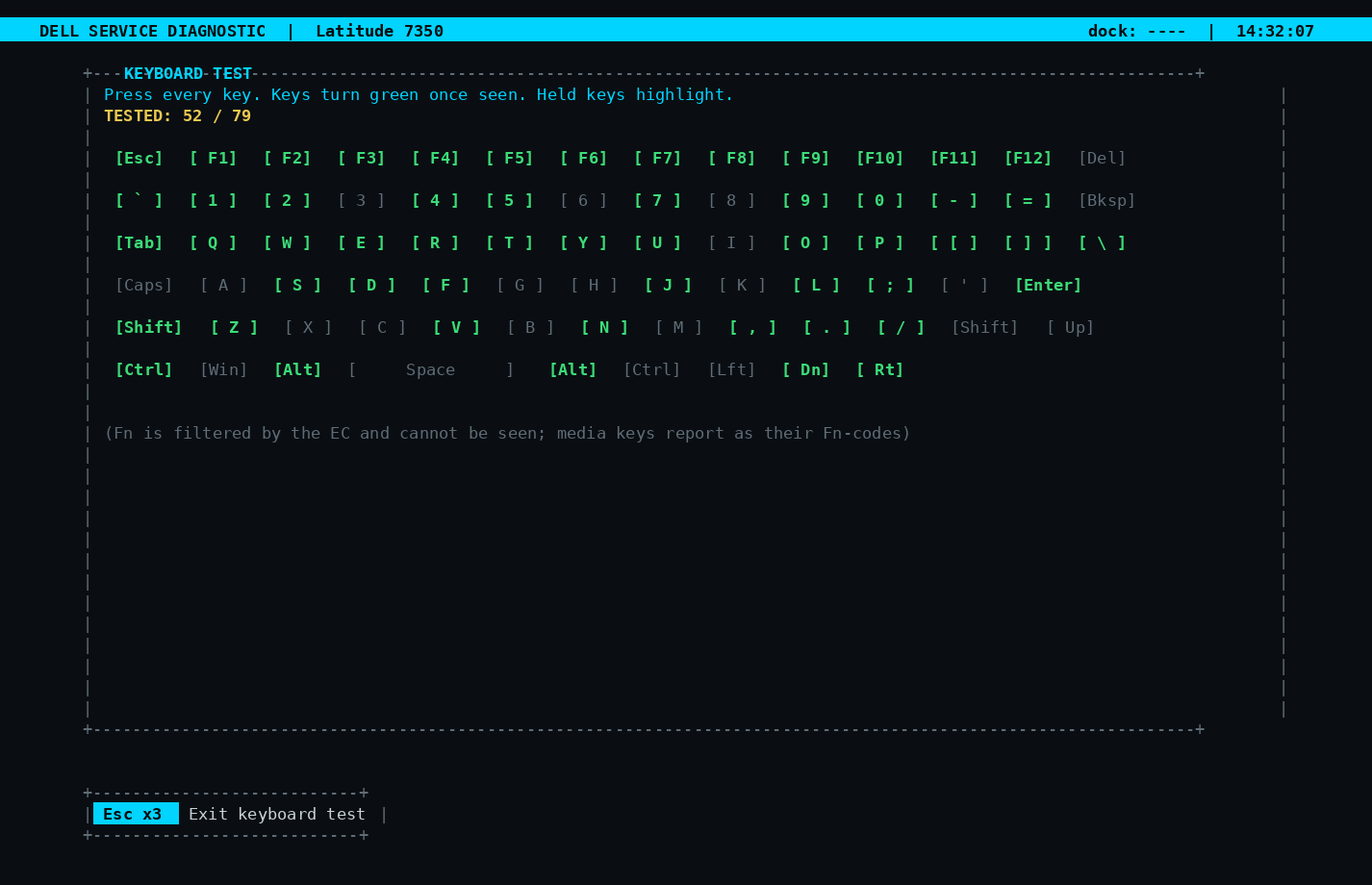
Keyboard test — every key lights up as it’s seen.
Writing it to a USB stick
Linux / macOS: gunzip -c dockdiag-1.1.img.gz | sudo dd of=/dev/sdX bs=4M conv=fsync (replace /dev/sdX with your stick — double-check, this erases it).
Windows: unzip with 7-Zip, then write dockdiag-1.1.img with Rufus (choose “DD image” mode when prompted) or balenaEtcher.
Any 1 GB+ stick works. Boot the Dell from USB (F12 one-time boot menu).
Notes
- Secure Boot friendly — boots the Microsoft-signed shim → GRUB → signed kernel chain, so no BIOS changes needed on a stock Dell.
- The memtest86+ boot-menu entry is the one exception: it’s unsigned, so turn Secure Boot off to run it.
- Built for Dell laptops (Latitude/Precision/XPS) and WD15/WD19-family docks, but the hardware inventory works on most x86-64 PCs.
- Nothing is written to the machine’s disks — the whole system runs from RAM.
- A debug shell is on tty2 (Alt+F2 or Ctrl+Alt+F2).